Reporting Map Feedback
Reporting Map Feedback (non-editable map issue)
You can report map issue which cannot be edited in Map Creator by using the “Report map problem” or “Customer ticket” feature (depending on what is available for you).
1 Using the “Feedback” button via the Footer section.
1) Click on the “Feedback” button and choose “Report map problem” or “Customer Ticket”.
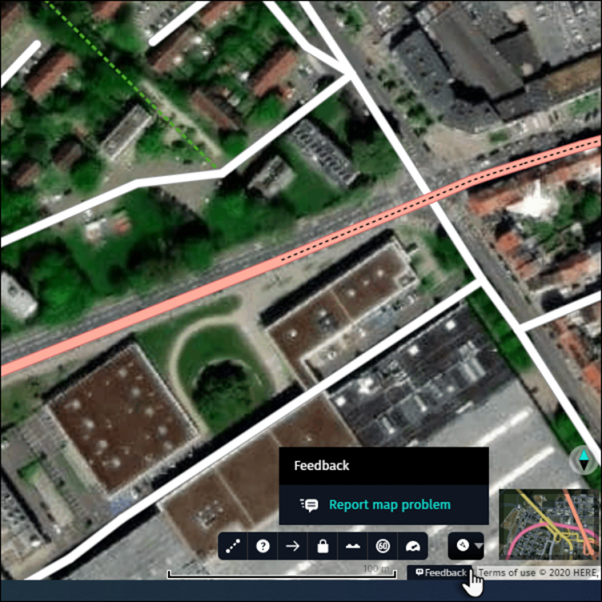
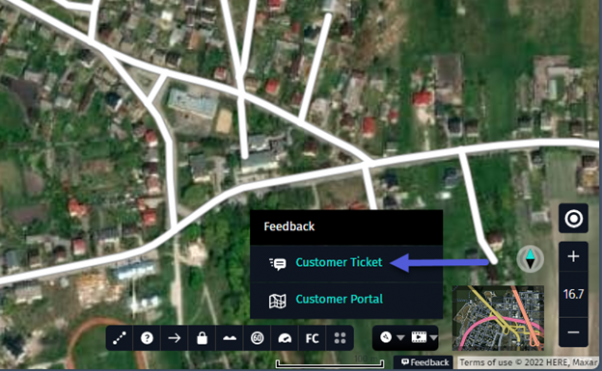
2) Complete the “Report map problem”/”Customer Ticket” form:
- Type key word(s) describing your problem in “Select a problem” box and pick best matching option from the list. As a result boxes “Select a problem” below and “Select a type” will be filled in for you.

- Alternatively choose “Select a problem” and than “Select a type” that best describes the problem.
- “Customer reference id” is optional.
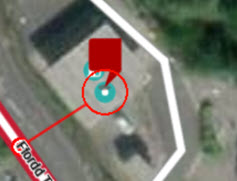
- Select Road, Place or House number on a map to report errors related to those objects. For other objects drag red marker to error location.
- To report road attribute issue, multiple road sections can be selected by holding “Shift” key.
- Add your comment to the “Please provide us more details” field, if that adds additional information to the form. Depending on your reported problem, description of the field for free text may be different.
- If helpful for problem description, add your drawing on the map. We advice to add drawing for missing or incorrect turn restrictions or any problem existing on wider area (check examples).
-
- Zoom in/out on the map for required zoom level.
- Click “Start drawing” to expand drawing bar.
- Adjust pen width and color to your needs.
- Draw annotation on the map.
- Click “Select area to attach”.
- Draw rectangle on the map to select screen area for attachment. Attachment will be added.
- Click “Done” when all intended screen attachments are added.

- “Add files (attachments)” as reference for your report (optional).
- If needed, move the red marker to the location of the map problem.
- Click “Submit”.
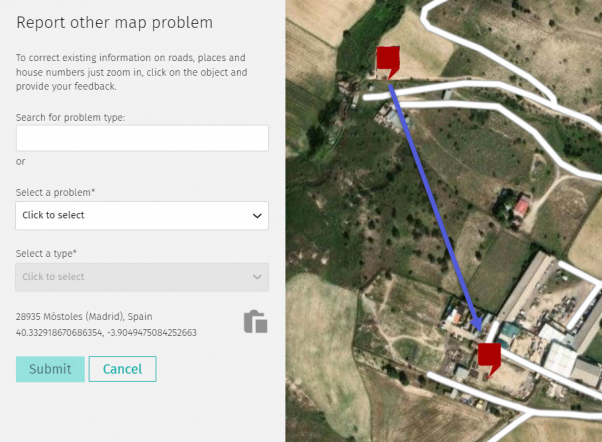
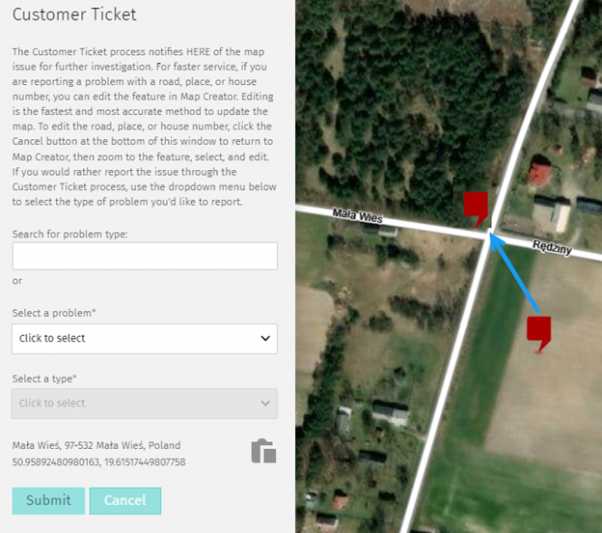
2 Using “Report other map problem” or “Customer Ticket” functionality
1) Right-click at the map problem location (road, place, house number or simply on the map) and choose “Report other map problem” or “Customer Ticket” from the menu.
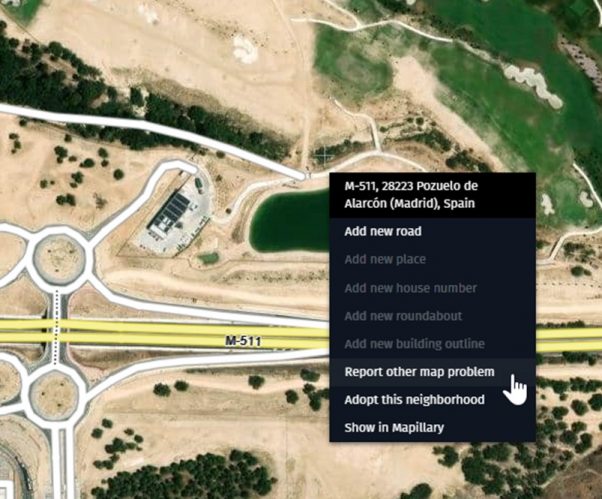
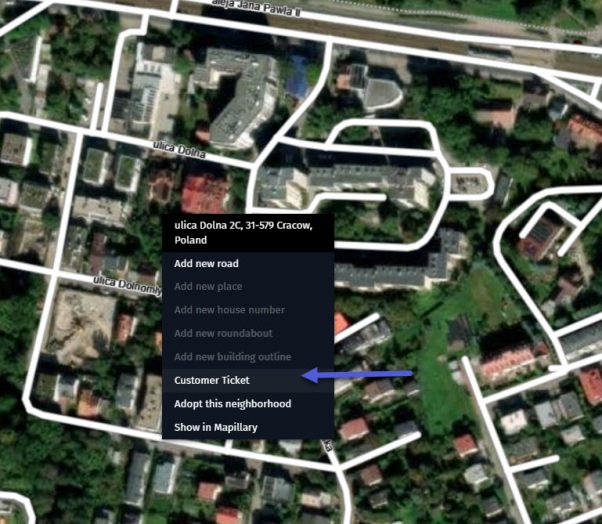
2) Complete the “Report other map problem”/”Customer Ticket” form (see example above) and click “Submit”.
Tip:
- Images and detailed comments speed up processing if they provide additional descriptive information.
- If you don’t find your problem in one of the “Select a problem” categories then choose “Other (Not listed here)”.
* Examples of map drawing attachments
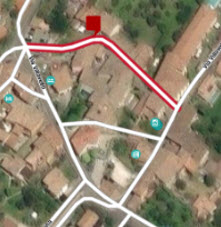
These are examples, where attachments added through “Start drawing” support resolving feedbacks effectively (ideally, corresponding with explanation comment):
- Allowed/restricted turns:

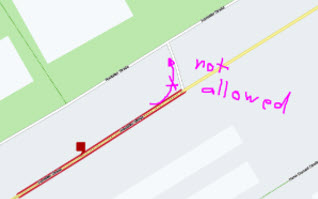
2. Wider area updates:
- missing roads or building outlines:
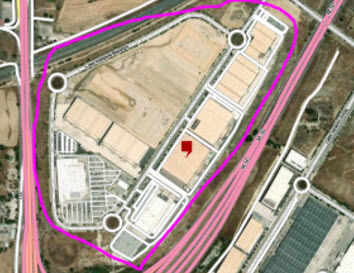
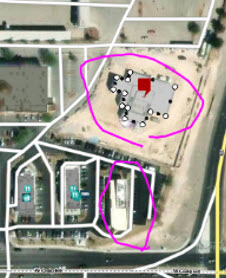
- updates in road direction:

- incorrect road information (note that you can select multiple links at once when reporting road errors):
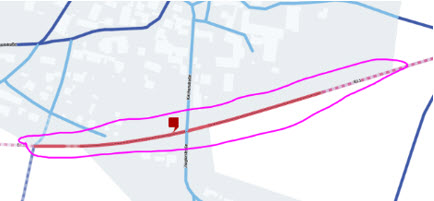
- truck restrictions:
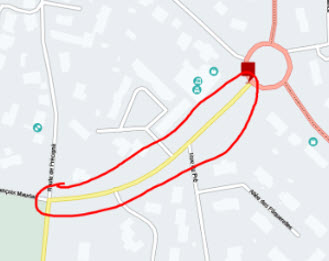
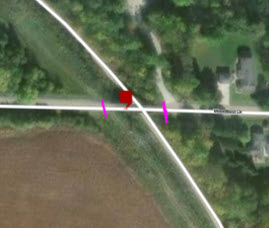
3. Presenting speed limit direction, and start and end points.
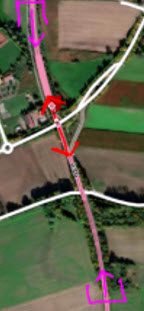
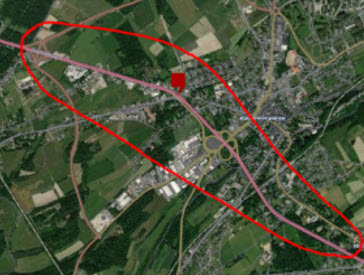
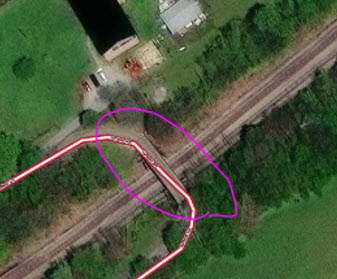
4. Specifying exact location of bridge, where selected road is longer:
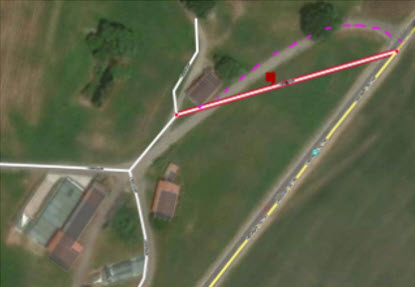
5. Incorrect road/place/house number location:
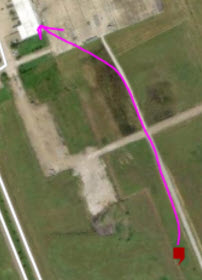
6. Complex situation:
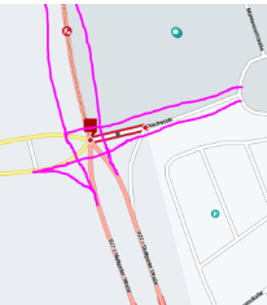

7. Multiple roads missing:
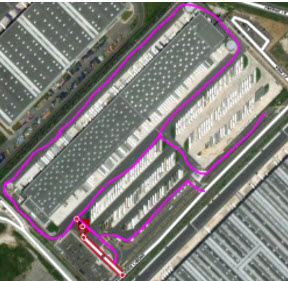
8. Missing lanes:
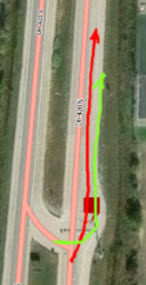
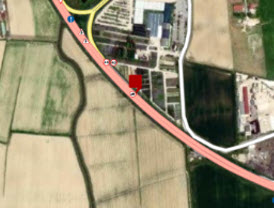
Our feedback resolution team will see the location, where red marker was pointed, as well as road, place (POI), building that was added or selected. If those markings are showing proper error location and no drawing has been added to the map, than there is no need to attach a screenshot of pure map: