Additional road editing tools
1 Copy and paste road details
In situations where roads have the same attributes, it can be faster to use the “Copy details” and “Paste details” feature instead of editing one road segment at a time.
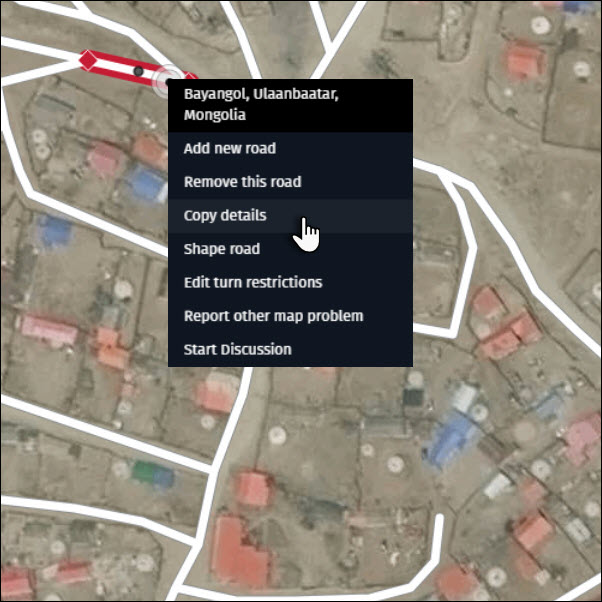
1) Right-click on the road with the attributes you want to copy and select “Copy details”.
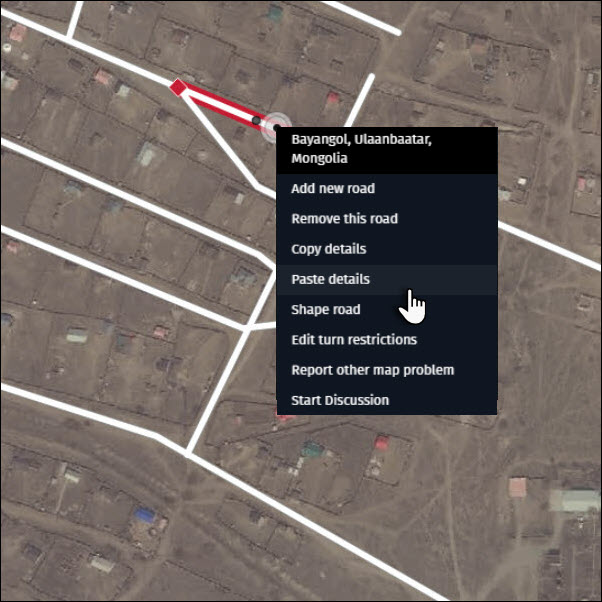
2) Right-click on the road onto which you want to paste the attributes and select “Paste details”.
Tip:
- To copy road attributes to multiple roads at once, use the “Multiple road segment selection” feature (see below).
2 Multiple road segment selection
Edit more efficiently by using the “Multiple link selection” feature. There are two options to select multiple roads:
2.1 Using the “Shift” key on your keyboard
1) Hold the “Shift” key on your keyboard and click on each road segment you want to select.
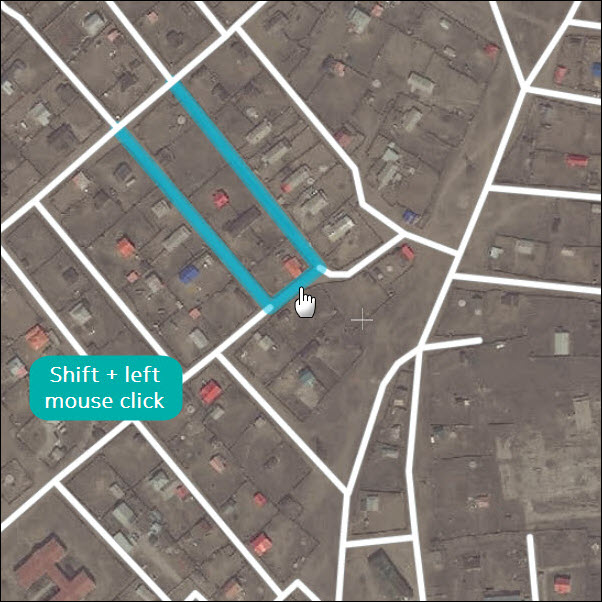
2) To deselect all road segments, click anywhere on the map.
2.2 Using the rectangle selection
1) Hold the “Shift” key on your keyboard, click and drag to draw a rectangular covering the road segments to be selected. Release the mouse button.
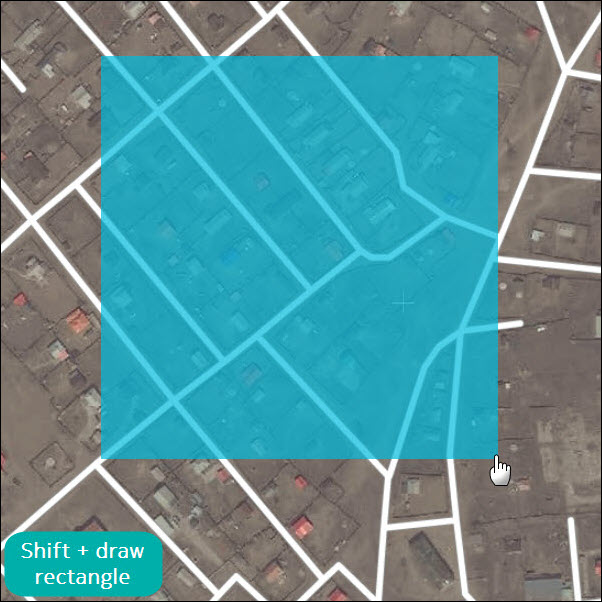
2) To deselect all road segments, click anywhere on the map.
Keep the following tips in mind when editing with multiple road segments selected:
- Select up to 100 road segments at one time. If you try to select more than 100, a notification appears.
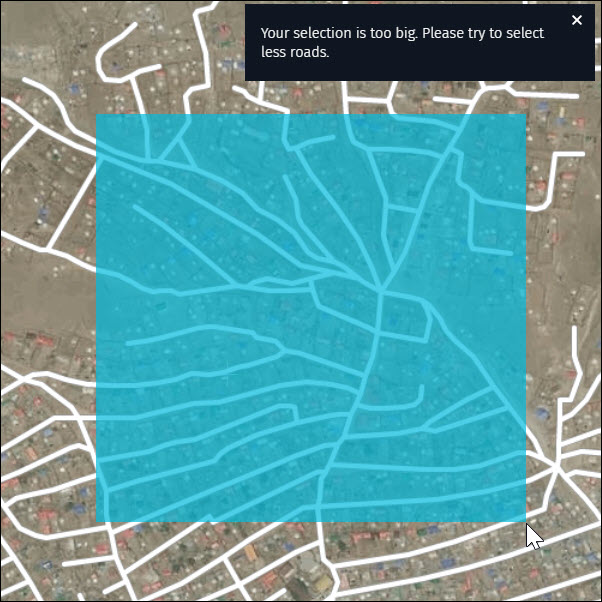
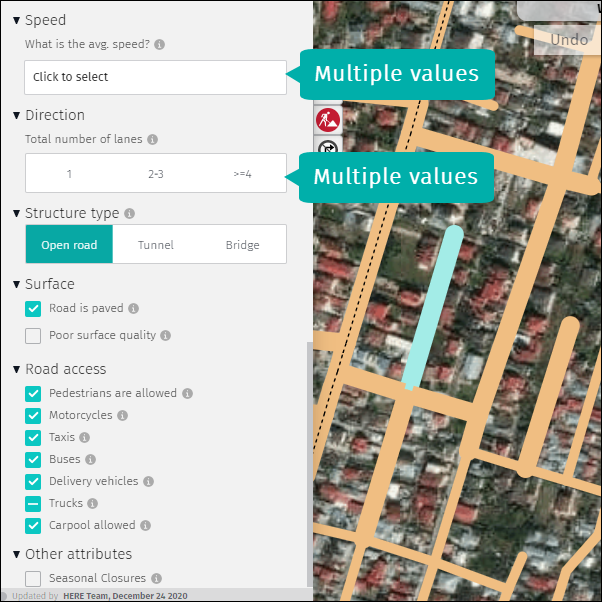
- Editing will overwrite existing attributes on all selected road segments.
- If a single attribute has multiple values across selected road segments, this will be reflected in the editing panel:
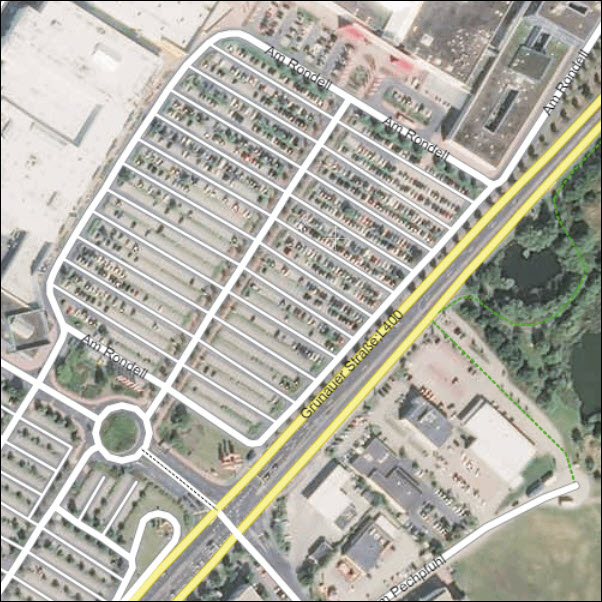
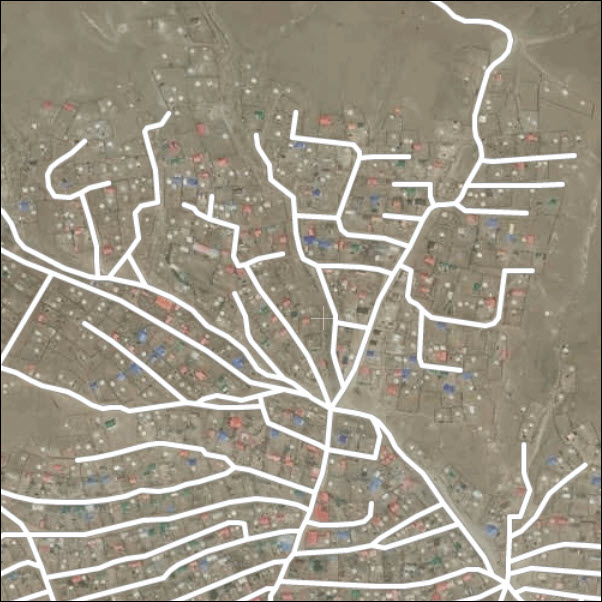
- Multi selection is especially helpful when editing parking lot roads or residential roads, where attributes tend to be identical.
3 Select roads with the same name
Edit more efficiently with the “Select roads with the same name” feature. There are two options to select multiple road segments with the same name.
3.1 Using the “Ctrl + Alt” keys on your keyboard
1) Hold the “Ctrl + Alt” keys and click on a named road segment.
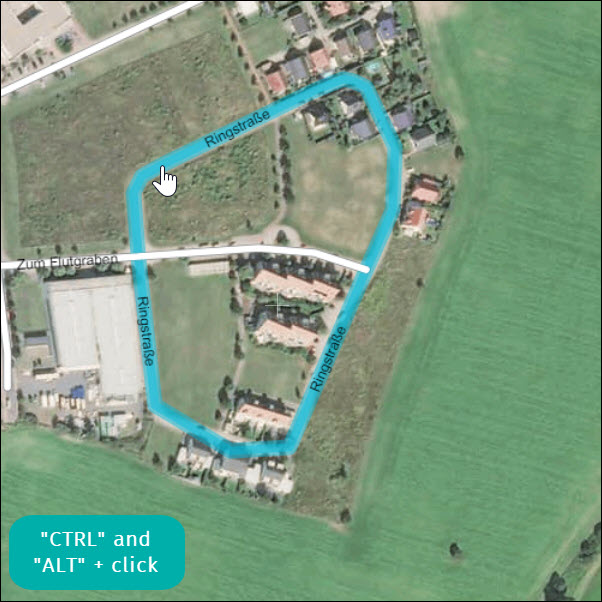
2) To deselect all road segments, click anywhere on the map.
3.2 Using the “Select same-name roads” option
1) Right-click on the road segment and choose “Select same-name roads”
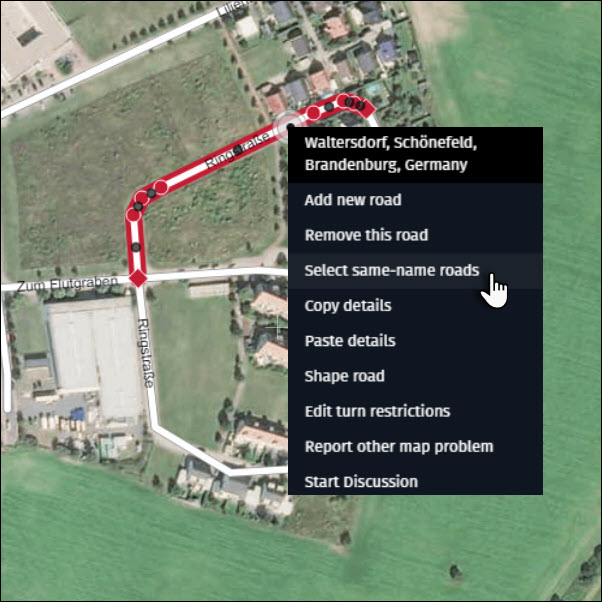
2) To deselect all road segments, click anywhere on the map.
Keep the following tips in mind when editing with multiple road segments selected:
- This feature only selects road segments with the same name within the map extent on the screen.
- Editing will overwrite existing attributes on all selected road segments.
- If a single attribute has multiple values across selected road segments, this will be reflected in the editing panel:
4 Discussions
You can start a Discussion about a road or reply to Discussions started by other users.
4.1 Using the “Start discussion” option from the editing panel
1) Select the relevant road.
2) Click on the “Start discussion” button.
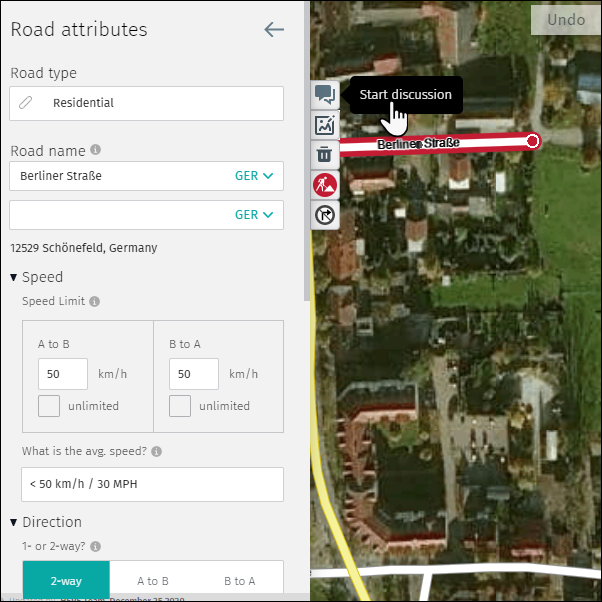
3) Complete the “Start discussion” form and click “Submit”
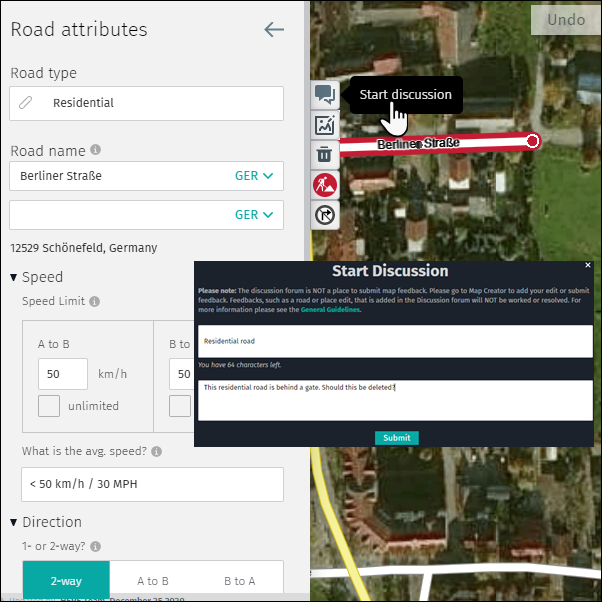
4.2 Using the “Start Discussion” option from the selected road
1) Right-click on the relevant road.
2) Select “Start Discussion.”
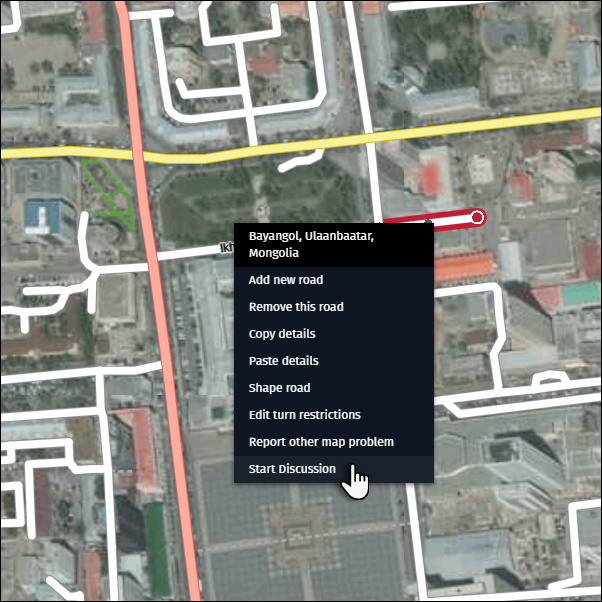
3) Complete the “Start Discussion” form (see example above) and click “Submit”.
4.3 To see or hide your Discussions or Discussions by other users
1) Open the layer menu and expand the “Support Layers” option.
2) Activate the “Discussions” checkbox if you want to see Discussions available in your area. Discussions are marked with a yellow circle with a black outline.
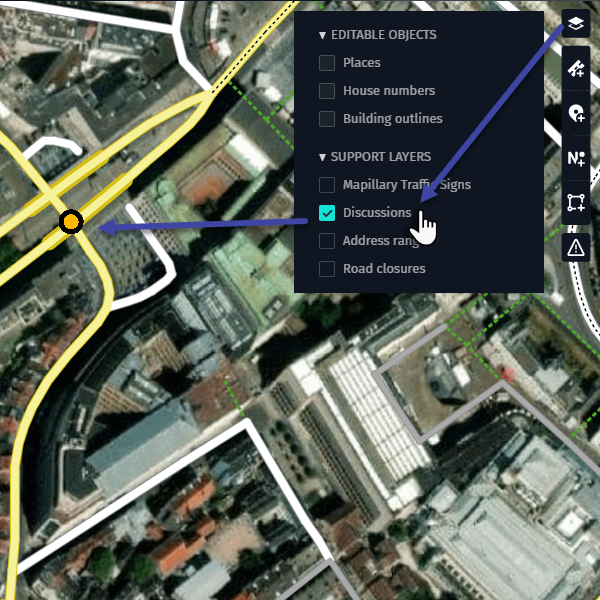
3) Press the yellow icon to read the Discussion in the Discussion detail window.
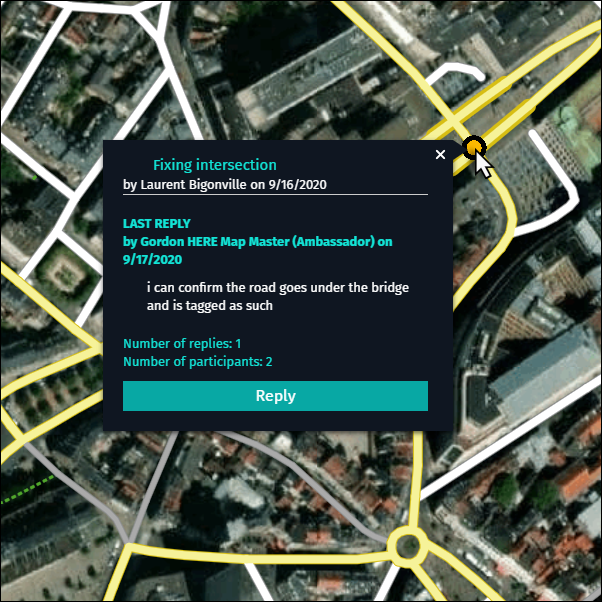
4.4 Reply to Discussions
1) Activate the Discussion layer.
2) Press the discussion icon and click on the Reply.
3) After clicking the Reply button, the “Discussion Board” opens in the Forum.

- The Discussion Board offers additional features:
- Subscribe or Unsubscribe to a specific Discussion.
- Report inappropriate content related to a specific Discussion, which will be reviewed by our internal experts.
- Upload images to clarify a question or answer.
- A link to General Guidelines on Discussions
- Search community function
- After replying in the Discussion Board, click “Submit”.
- Your contribution appears in the Discussions detail window.
Note:
- Discussions are visible to all Map Creator users.
- Discussions cannot be deleted.
5 Uploading images
You can upload an image to clarify a road edit. Uploaded images are only visible to internal experts and used as reference.
1) Select the relevant road.
2) Click on “Upload image” and browse your computer to select the image for uploading and click “Open”.
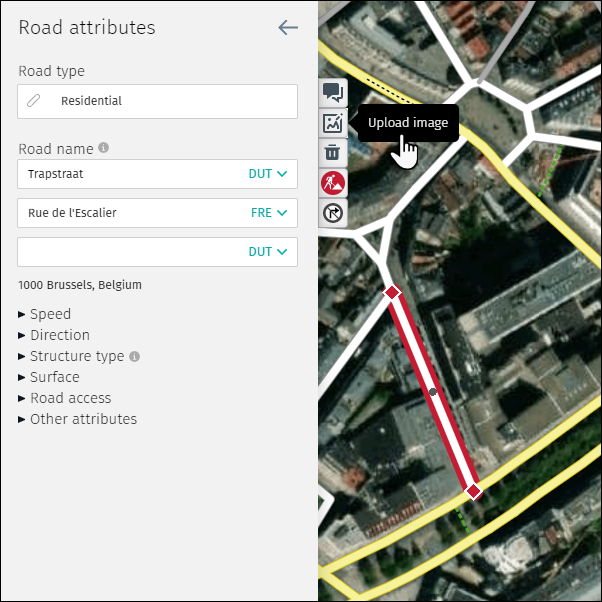
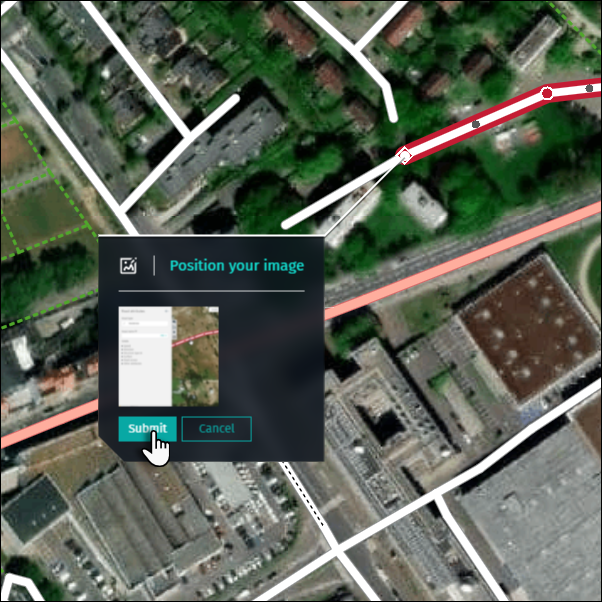
2) After clicking “Open,” the image preview appears
- The user can Submit or Cancel the uploading of the image
- Click “Submit” to upload the image to the Map Creator repository.
6 Report other (non-editable) road issues
You can report a road related issue which cannot be edited in Map Creator by using the “Report map problem” or “Customer ticket” feature (from “Feedback” button, depending on what is available for you).
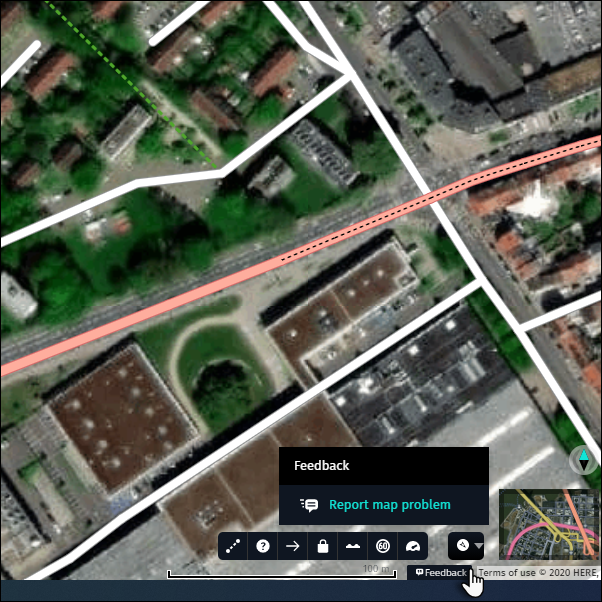
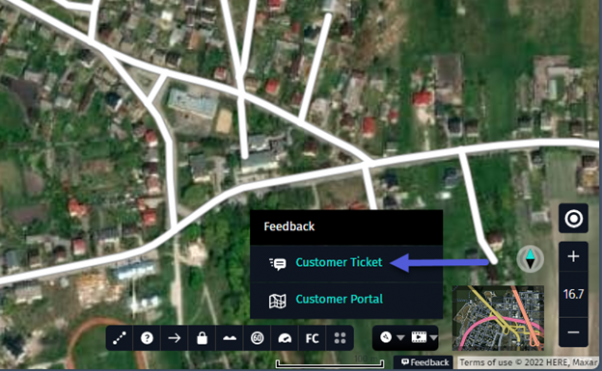
6.1 Using the “Feedback” button via the Footer section.
1) Click on the “Feedback” button and choose “Report map problem” or “Customer Ticket”.
2) Complete the “Report map problem”/”Customer Ticket” form:
- Type key word(s) describing your problem in “Select a problem” box and pick best matching option from the list. As a result boxes “Select a problem” below and “Select a type” will be filled in for you.

- Alternatively choose “Select a problem” and than “Select a type” that best describes the problem.
- “Customer reference id” is optional.
- Select Road on a map to report error.
- Multiple road sections can be selected by holding “Shift” key.
- Add your comment to the “Please provide us more details” field, if that adds additional information to the form. Depending on your reported problem, description of the field for free text may be different.
- If helpful for problem description, add your drawing on the map. We advice to add drawing for missing or incorrect turn restrictions or any problem existing on wider area (check examples).
-
- Zoom in/out on the map for required zoom level.
- Click “Start drawing” to expand drawing bar.
- Adjust pen width and color to your needs.
- Draw annotation on the map.
- Click “Select area to attach”.
- Draw rectangle on the map to select screen area for attachment. Attachment will be added.
- Click “Done” when all intended screen attachments are added.

-
- “Add files (attachments)” as reference for your report (optional).
- Click “Submit”
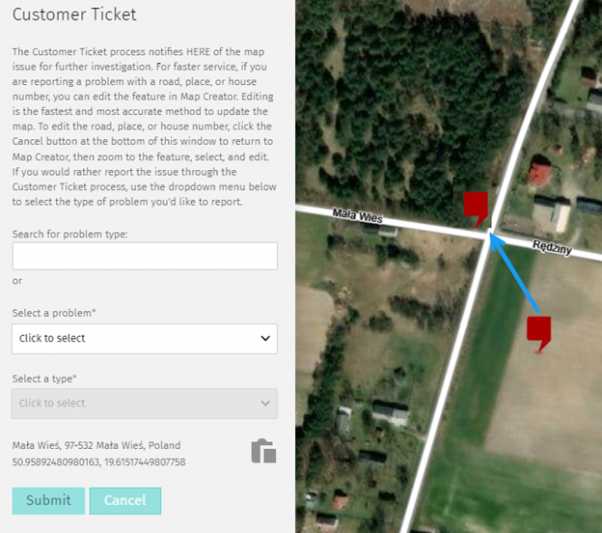
6.2 Using the “Report other map problem” or “Customer Ticket” functionality
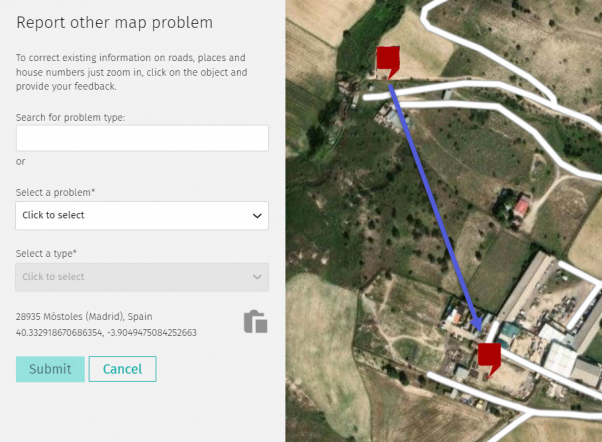
1) Right-click at the map problem location and choose “Report other map problem” or “Customer Ticket” from the menu.
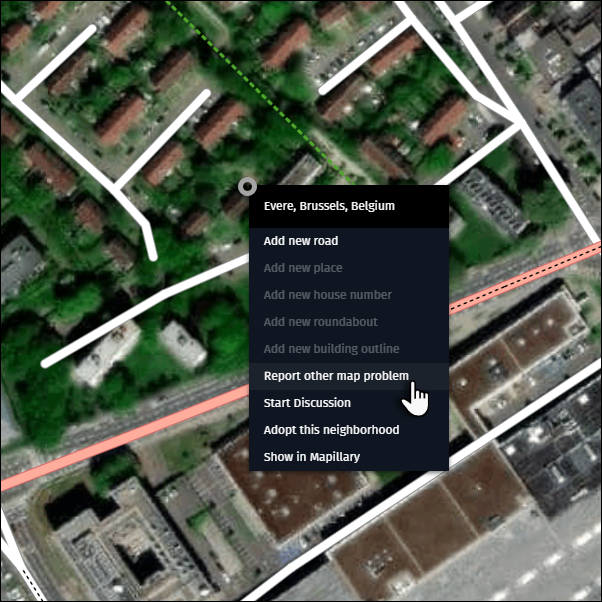
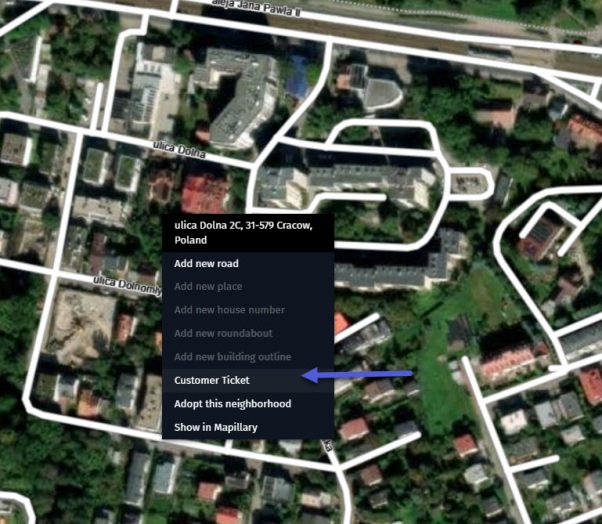
2) Complete the “Report other map problem”/”Customer Ticket” form (see example above) and click “Submit”.
Tip:
- Images and detailed comments speed up processing if they provide additional descriptive information.
- If you don’t find your problem in one of the “Select a problem” categories then choose “Other (Not listed here)”.