Additional house number editing tools
1 Upload a picture related to a house number
You can upload a picture related to your house number edit. This picture will only be visible for our internal experts and used as reference to speed up the moderation process of your edit. What you need to do:
1) Select the relevant house number.
2) Click on the “Upload image” button.

3) Browse your computer, select the image for uploading and click on “Open” or drag and drop the image into the panel

4) After the upload an image preview will be displayed.

5) The “Upload image” preview allows the submission of the image to the Map Creator repository, or the upload can be cancelled.

2 Report non-editable house number issues
In Map Creator you can also report issues that cannot be edited directly in the tool. There are two ways to report an issue. Follow the steps as described below:
2.1 “Feedback” option via the footer section
1) Click on the “Feedback” option in the Footer section of Map Creator.
2) Select “Report map problem” or “Customer Ticket”.
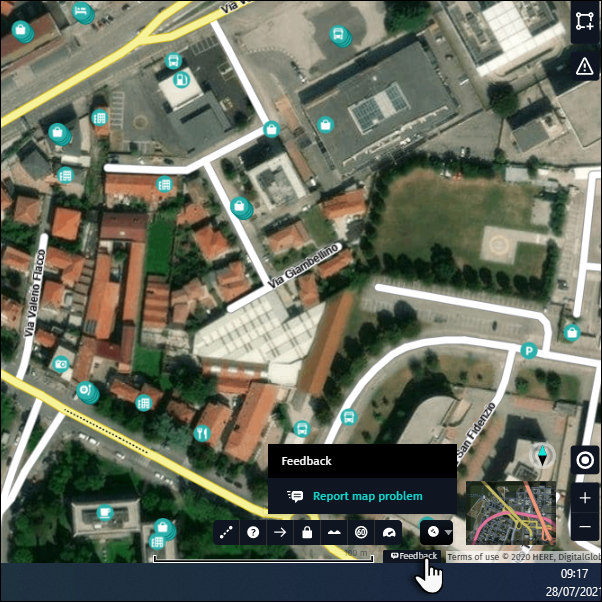
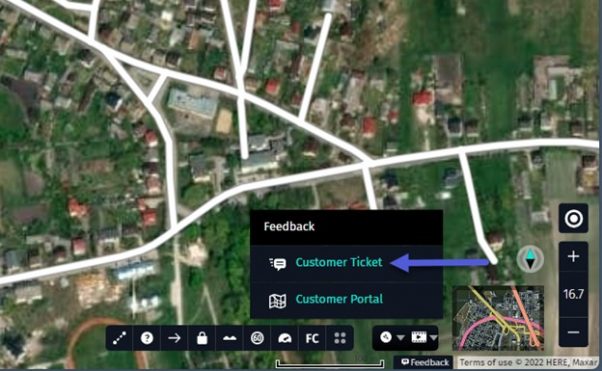
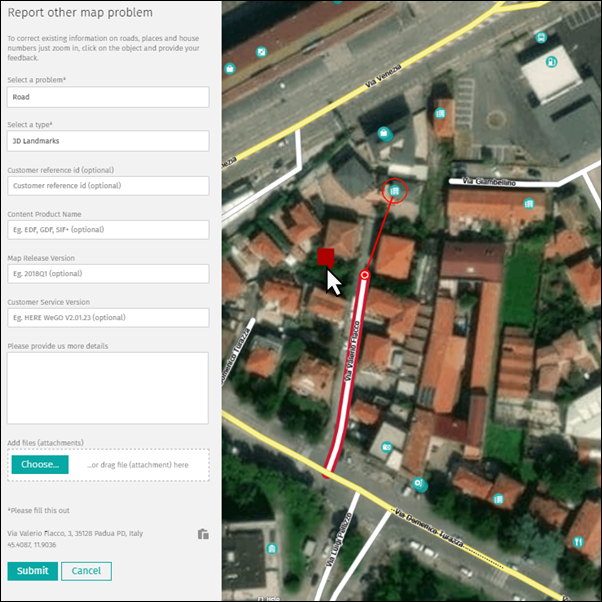
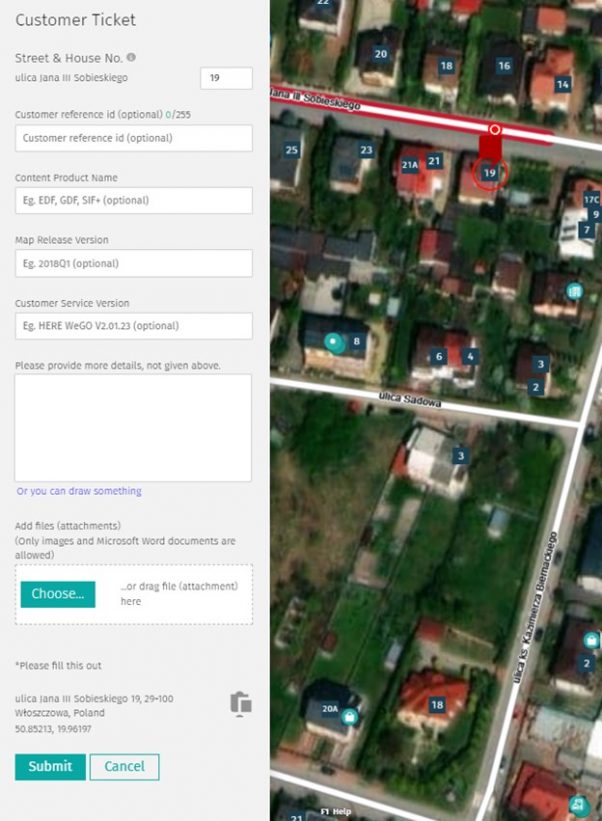
3) Fill out the form with as many details as possible and “Submit” your issue.
- Type key word(s) describing your problem in “Select a problem” box and pick best matching option from the list. As a result boxes “Select a problem” below and “Select a type” will be filled in for you.

- Alternatively choose “Select a problem” and than “Select a type” that best describes the problem.
- The other attributes are optional.
- Select house number on a map to report error.
Note:
- Only submit issues that you cannot edit in Map Creator.
- Add images and detailed comments to speed up processing, if that adds additional information to the form.
- Depending on your reported problem, description of the field for free text may be different.
- If helpful for problem description, add your drawing on the map. We advice to add drawing for missing or incorrect turn restrictions or any problem existing on wider area (check examples).
-
- Zoom in/out on the map for required zoom level.
- Click “Start drawing” to expand drawing bar.
- Adjust pen width and color to your needs.
- Draw annotation on the map.
- Click “Select area to attach”.
- Draw rectangle on the map to select screen area for attachment. Attachment will be added.
- Click “Done” when all intended screen attachments are added.

2.2 “Report other map problem”
1) Make a right mouse click on the house number icon and choose “Report other map problem”/”Customer Ticket” from the menu.

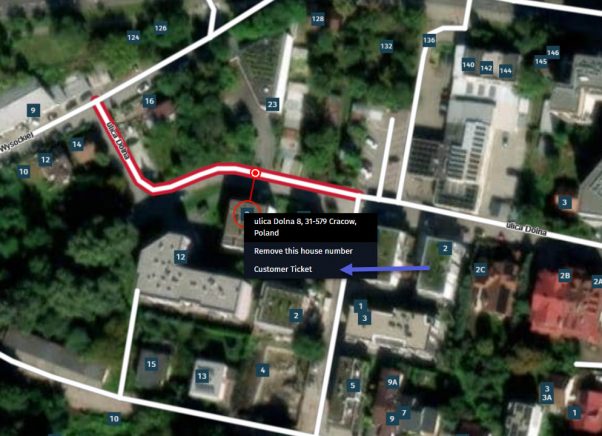
2) Fill out the form with as many details as possible (see example above) and “Submit” your issue.